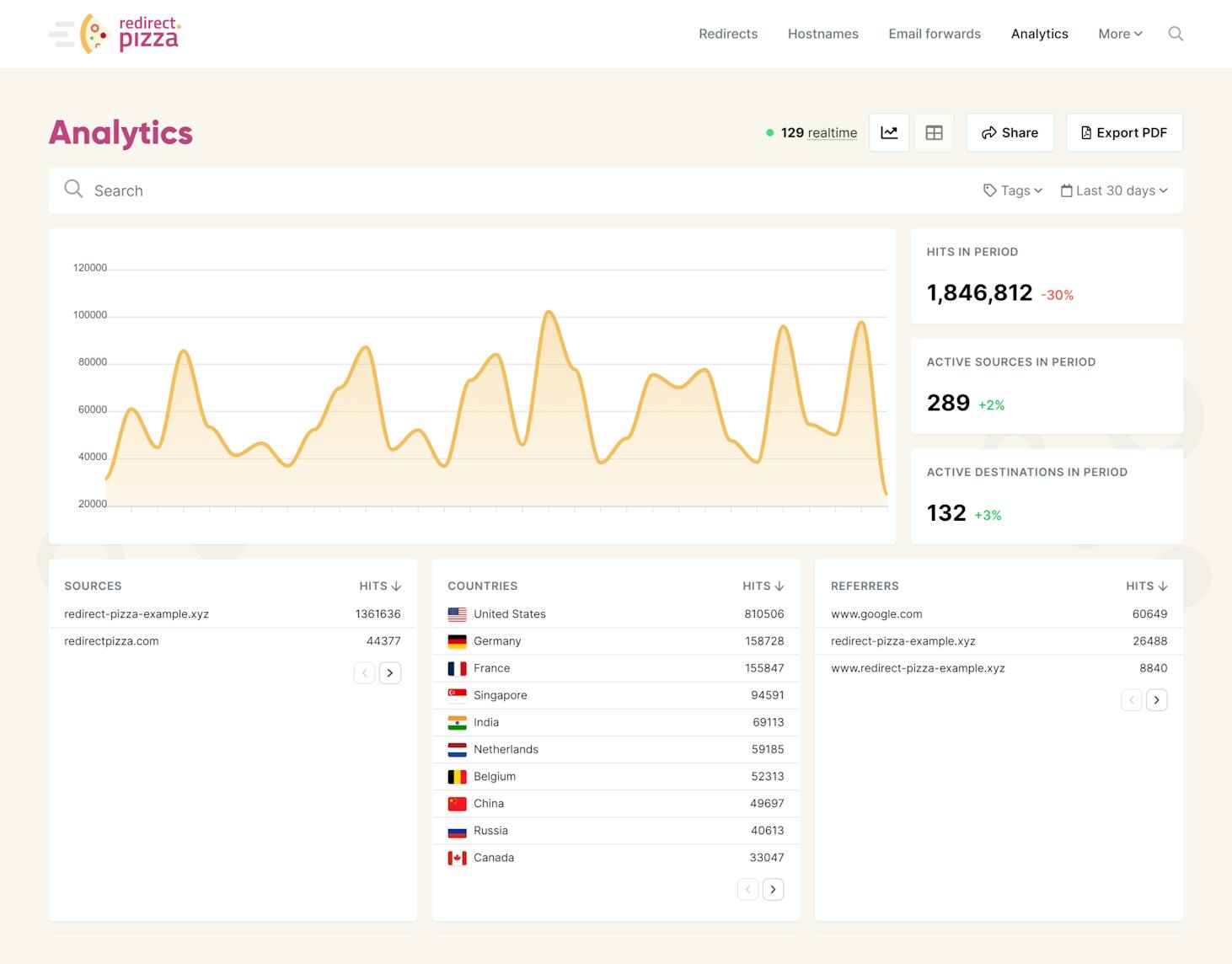
Our built-in analytics provide valuable insights into the performance of your redirects and domains. For example, you can easily monitor the most popular redirects and also from which source/country the traffic originates. With these insights, you can make data-driven decisions for your domains and redirects. One way you can use this data is to identify any irrelevant domains, which can be canceled with your domain registrar. Aside from that, you can troubleshoot any issues with your redirects and domains. For a deeper look at which metrics matter most after a domain migration, read our guide on what to monitor in your redirect analytics.
Here are a couple of insights you can expect to see:
- Amount of hits - per period
- Traffic sources
- Traffic destinations
- Top 10 countries
- Top 10 referrers
- Traffic type (Crawler & User traffic)
- Top 50 of the top performing URLs
Raw Analytics - traffic logs
On our Business plans and up, you have the ability to view the raw analytics logs. This provides a more detailed insight into your redirects. The data is split from request to request and can be exported as a CSV file, which allows you to do further analysis of the performance of your redirects.
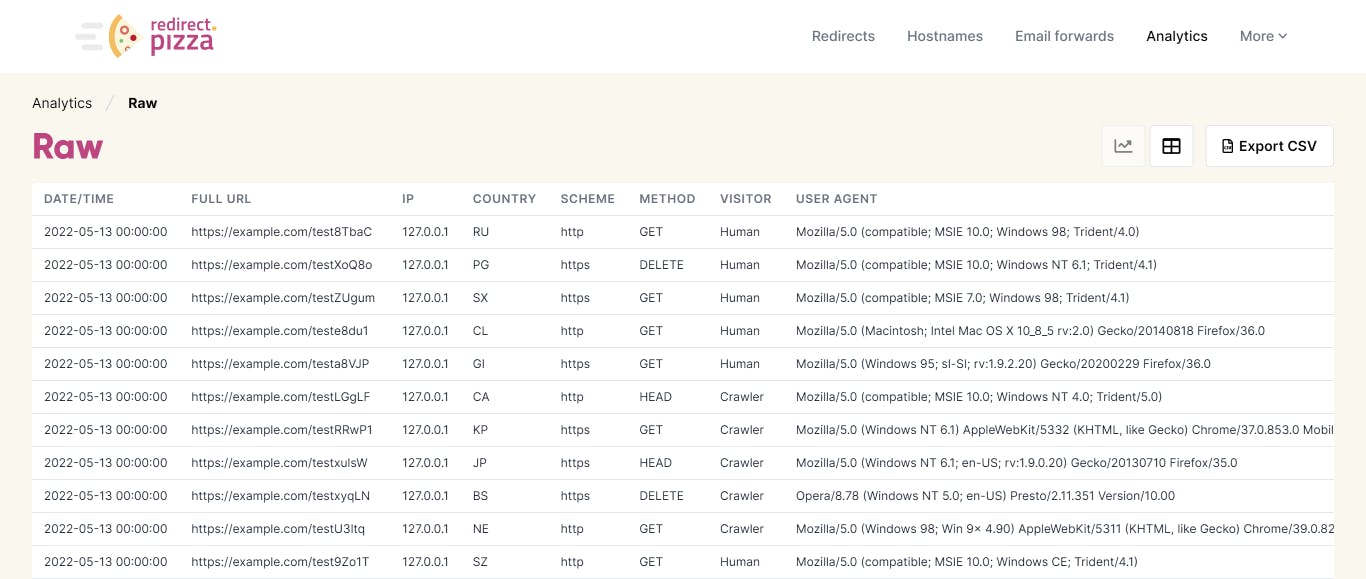
The following data is presented in this Raw view:
- Date and time of the request
- Full URL
- IP
- Country
- Scheme
- Method
- Visitor type (human or crawler)
- User Agent
- Referrer
- Browser name
- Operating system
- Platform
- Device type
Filtering
You may define filtering rules as the search query to dive deeper. The following filters can be used:
- country -> Example: "country:US"
- continent -> Example: "continent:EU"
- subdivision -> Example: "subdivision:CA"
- scheme -> Example: "scheme:http" or "scheme:https"
- method -> Example: "method:GET"
- traffic_type -> Example: "traffic_type:crawler" or "traffic_type:human"
- tracking -> Example: "tracking:FULL" (options: FULL, ANONYMOUS, DNT)
- hostname -> Example: "hostname:subdomain.example.com"
- domain -> Example: "domain:example.com"
By prefixing with a dash ("-") you can define a `NOT` rule. Example: "-country:US"
You may define multiple filters in a single query by separating it with a space. Example:
country:US traffic_type:crawler -method:GET
Summary email
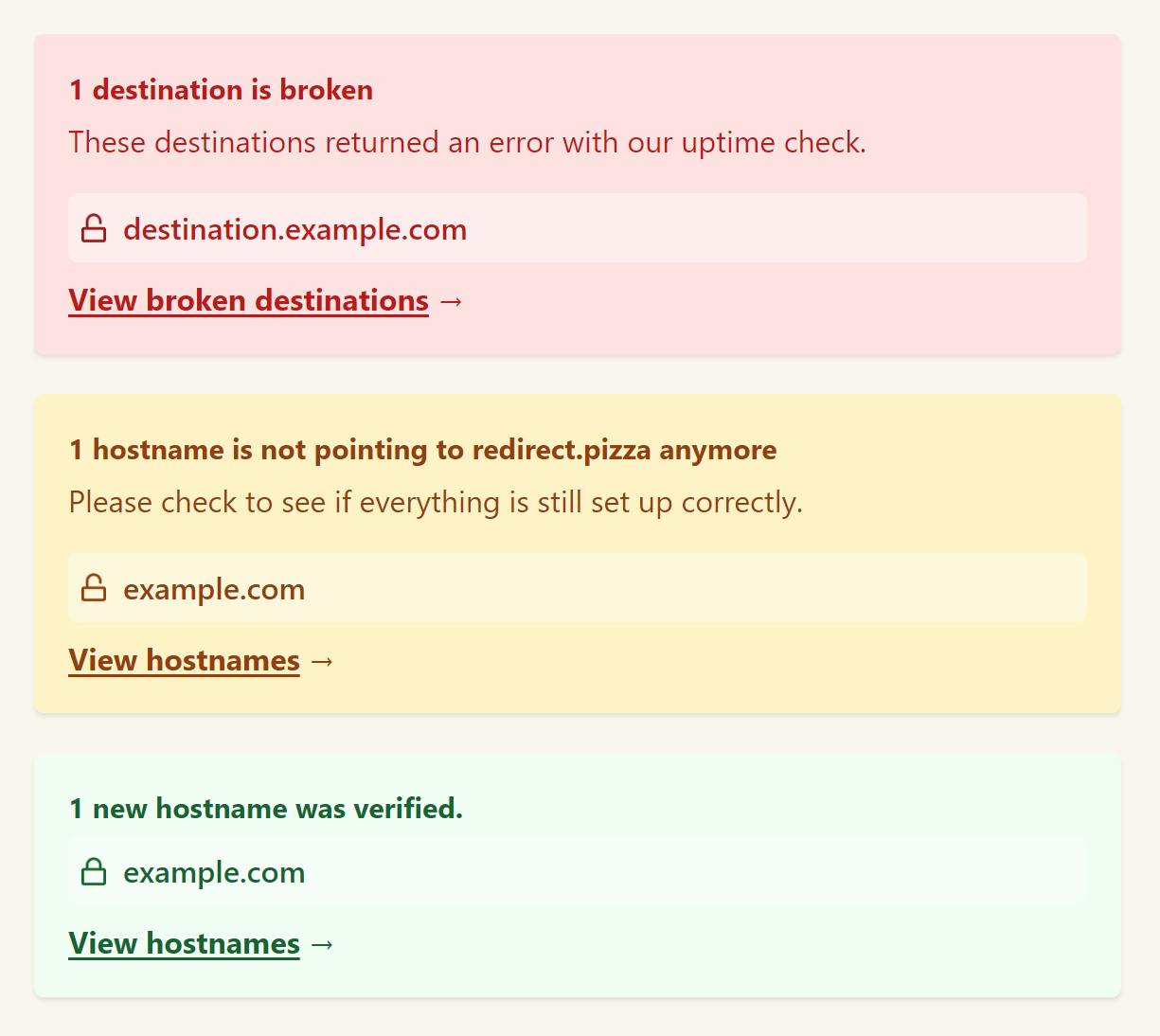
To make sure that you’re always on top of things, we’ll send you a summary email with the most important insights about your redirects. This also includes a notification if any broken redirect destinations.
You may specify to receive this mail in the following frequencies:
- Daily
- Weekly
- Monthly
The email will only be sent if changes have been detected in your account. For "Monthly" intervals, we will always send the email on the 1st of the month, as it includes the monthly analytical overview.
 Insights you can expect
- The summary mail contains the following insights
- Your analytical overview
- Hostnames that require an upgrade to the Edge network.
- Newly verified hostnames
- Newly unverified hostnames
- Newly detected broken destinations
Interested? Try our redirect service for free
If you're interested in testing out our redirect service, you can create an account by clicking on the "create free redirect" button below. With this account, you gain access to a whole host of amazing additional features that redirect.pizza offers.
Related Guides
FAQ
redirect.pizza tracks redirect performance automatically. Your dashboard shows hit counts per period, traffic sources, destination URLs, top 10 countries, top 10 referrers, and whether traffic comes from humans or crawlers. On Business plans and up, raw analytics logs let you analyze traffic request by request and export to CSV.
Yes. On Business plans and up, you can export raw analytics logs as a CSV file. Each row contains the timestamp, full URL, country, visitor type, user agent, referrer, browser, operating system, and device type. This lets you run your own analysis in spreadsheet tools or import the data into other platforms.
Crawler traffic comes from search engine bots like Googlebot, while user traffic comes from real visitors. redirect.pizza separates these in your analytics so you can see how much of your redirect volume is actual human visitors vs. automated crawling. This matters because high crawler traffic on a retired domain doesn't mean real users are still visiting it.
In the raw analytics view, you can use filter syntax like "country:US" or "traffic_type:human" to narrow results. Filters can be combined (e.g., "country:US traffic_type:crawler") and negated with a dash prefix (e.g., "-country:US"). You can also filter by continent, scheme, method, hostname, and domain.


